
What are task services?
Task services let you plan, perform and report the work your teams do at a stop, such as installation, assembly or haul-away, on the same task as the goods you deliver. Each service is listed next to the task's items, and the driver reports it as done or not done when the stop is completed.
Until now, services often had to be sent as placeholder items like "ASSEMBLY-01", added as free-text notes, or split into a second task at the same address. With task services, a delivery and the work around it travel together as one task, and each service keeps its own outcome.
Why it matters
Task services keep goods and work cleanly separated, so each is handled the way it should be.
- One task per stop. Deliver a dishwasher and install it on the same visit, with no duplicate task at the same address.
- No more fake items. Services are never scanned, so they stay out of hub scanning, loading and preparation. Your drivers only scan what they can physically hold.
- A clear outcome for every job. Each service ends as done or not done, so you know exactly which installations or removals still need follow-up.
- More reliable delivery status. If the goods arrive but a service could not be performed, the task shows as partially delivered rather than a complete success.
- Service-only visits. A task can hold services with no items at all, for example, a standalone installation or an old-appliance pickup.
- Reporting out of the box. Filter and export tasks by service type and service status, without separating placeholder items from real ones.
How it works
A service follows the task from order to completion, with three possible statuses: pending, done and not done.
- Create the task. Send services with the task through the API or add them in the order dialog in the web app. Each service has a name, a type from your catalogue, and optionally a description, a reference, the item it relates to, a duration and extra details such as the floor.
- Plan the round. Services stay pending while the task is planned. If a task is replanned, unplanned or removed from its round, its services go back to pending.
- Start the round. Once the round starts, the service list is locked so the driver works from a stable plan.
- Prepare and load. Only items are scanned at the hub and during preparation. Services are skipped, and a service-only task has nothing to prepare.
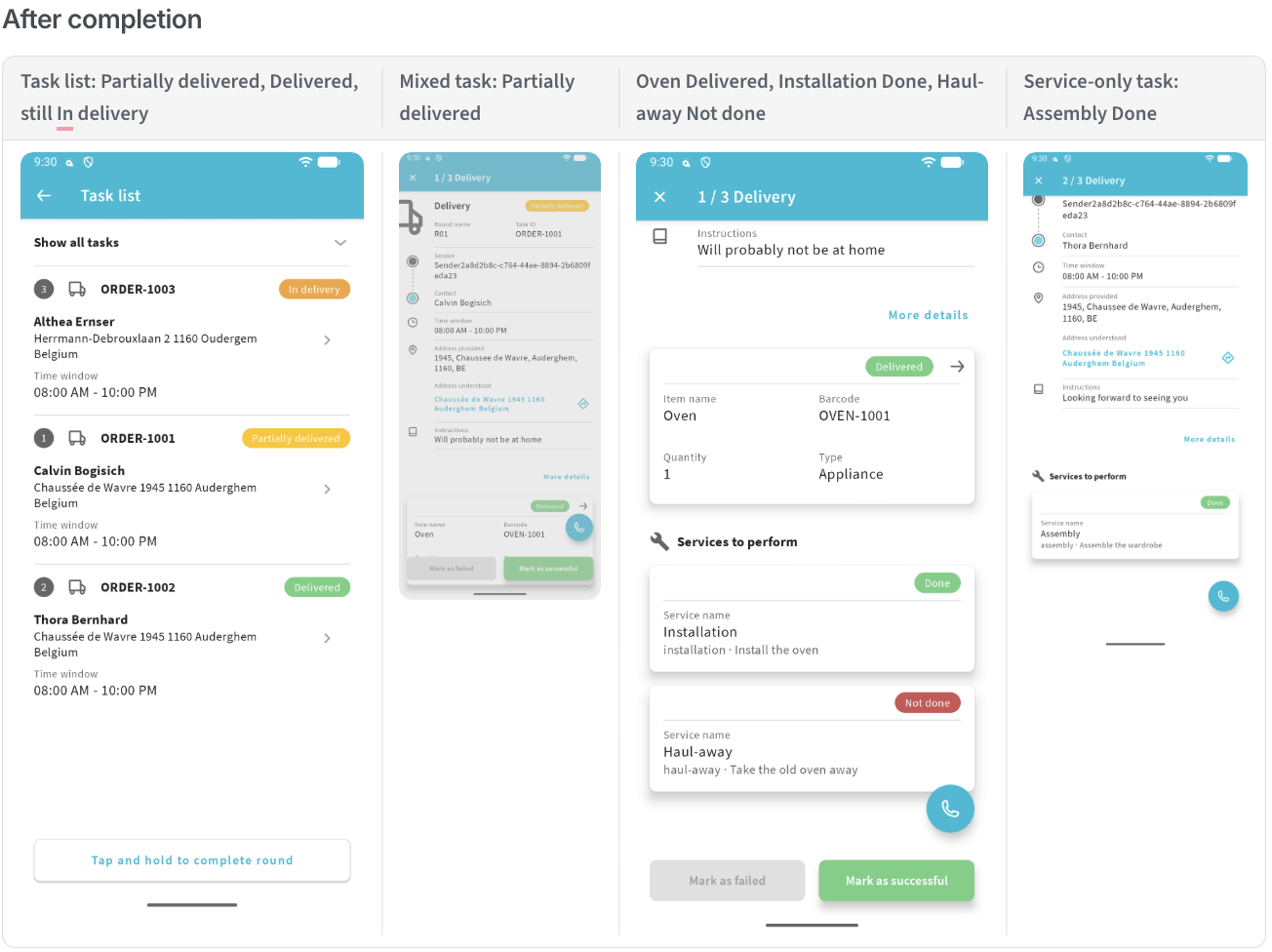
- Perform at the stop. In the driver app, services appear under "Services to perform", marked as services with no barcode. After checking the items, the driver ticks each service that was completed in a services checklist.
- Complete the task. Ticked services are recorded as done and unticked ones as not done. The task status then reflects items and services together.
| Stop outcome | Task status |
|---|---|
| All items delivered, all services done | Delivered |
| Items delivered, at least one service not done | Partially delivered |
| Stop failed or round closed before the stop | Pending services become not done |
Your dispatchers see every service, with its status, on the task detail, in the task list and in the round editor.
Getting started
Task services are enabled per platform: contact your Urbantz account manager to switch them on.
Once enabled, they can be set up in the General screen as shown below in the example:
- Set up your services catalogue. In platform settings, add each service type you offer, such as Installation or Haul-away, with its default duration in minutes and the skills it requires. When a service arrives without a duration, the catalogue default is used.
Send services with your tasks. Add a
serviceslist next toitemswhen you create a task or an order. Existing item payloads keep working unchanged. Orders can carry services at the top level or per delivery and pickup leg, and recurring task templates can include services too. The services information will then be available in the Task details page under the Delivery tab as seen below.Or add them by hand. Dispatchers can add and edit services in the Services tab of the task dialog.
Track the results. Use the new service columns and filters in the task list, and the services columns in the task extract. Webhooks for task changes and status changes include the services and their statuses.
Tip: give each service a reference. If you send the same task again, services with a matching reference keep their identity and status instead of being recreated.
Task Services on the Urbantz Mobile driver app
- Services show on the stop with a "Service" marker, without any barcode, and are left out of preparation, scanning, and return to hub.
- At delivery, the driver marks each service as Success or Failed in a separate Services checklist; the app sends them as
DONE/NOT_DONEinstances - A service-only task has nothing to prepare and no scan screen.
 Frequently asked questions
Do I need to change my integration? No. Tasks without services behave exactly as before. You add the services list only when you are ready.
Can a task have services but no items? Yes. A task can hold only services, for example, an installation visit for goods delivered earlier.
Does a missed service fail the whole delivery? No. The delivered items stay delivered, the service is marked not done, and the task shows as partially delivered so you can plan a follow-up.
Can I change services after the round has started? No. The list is locked once the round starts. To change it, take the task out of its round first; its services then return to pending.
Can a task carry multiple services? Yes.
Will my customers see services on the tracking page? Not at this stage. Services are visible to your dispatchers and drivers, and in the API, webhooks, and data extracts.
Comments
0 comments
Please sign in to leave a comment.