
Calculate the delay of the round
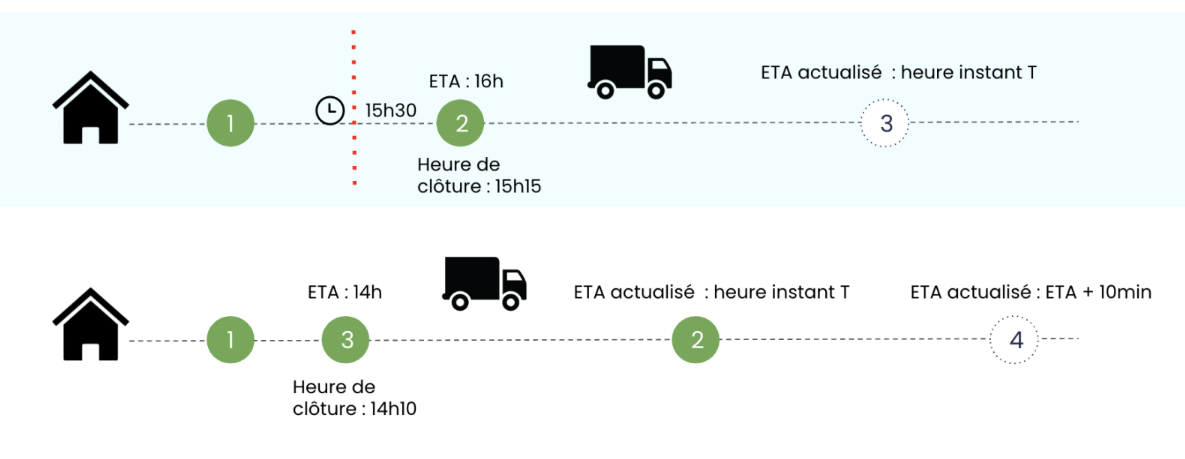
The delay of the round specifies how much in advance or late the driver is regarding the estimated ETA when the round is created. It shows how much the driver deviates from the original “plan”.
- If the round is not started, we compare the estimated starting time to now.
- If the round is ongoing but no tasks were completed, we compare the actual start time with the estimated start time.
- If some tasks were completed, we compare the closure time with the estimated departure time of the task.
Calculate the delay of the task
The delay in the task specifies how much in advance or late the driver completed or is going to complete a task regarding the time window (not the ETA). The delay is only calculated on the first Time Window
There are two cases, when the task is completed and when it is not completed.
When the task is completed (delay is real)
if the task was completed outside of the time window, whether that is before or after, there is a delay.
- If the closure time is after the time window stop the delay is positive
- If the closure time is before the time window start then is negative.
- If the task is completed inside of the time window the delay is 0.
When the task is not completed yet (delay is forecasted)
If the task is not completed, there is a delay if the task will be completed outside of the time window. In this case, there is no negative delay as we can’t predict if the driver will arrive earlier or will take a break.
- If the delay of the round + the arrive time (Actual ETA) is after the time window stop, the task has a positive delay.
- If the arrive time obtained from the optimiser is after the time window stop, the task has a positive delay
- If the arrive time obtained from the optimiser is before the time window start, the task has a negative delay
- If the Actual ETA is before the time window start (the toggle ETA ahead of schedule should be activated), the task has a negative delay
When a task has delay 0 it means the task is not in delay. Therefore it shouldn't be displayed when applying the filters on delay.
If the task does not have a round because is handled by an external carrier, the delay is computed exclusively with the ETA provided by the carrier.
Calculate the Actual ETA
- If the sequence is respected, the actual ETA = estimated ETA + the delay of the round
- If the round is ongoing but the driver already delivered something after the task sequence, the actual ETA = now. There is no way to know the ETA when the driver doesn't respect the sequence.
Notes
It's a pretty simple and basic calculation, we don’t use the position of the driver.
If there is reloading in the rounds (as R01-1, R01-2, R01-3) we calculate the delay of the ongoing round and then apply that delay to the rest of the rounds (calculating if there is waiting time etc.).
Delay visuals
 The usage of the delay
The delay is shown in the task list and in the Overview. There are 3 levels of delay configurable in the Platform General:
- Less than X minutes
- Between X minutes and Y hour
- More than Y hour
By default X is 30 minutes and Y is 60 minutes
In the Task list, we can find them as filters. In this case, there are two additional options:
- Task without delay
- Tasks completed in advance
In the Overview, we can find the 3 levels of delay in the card Task Delay. Here the number of tasks in delay are divided into two groups
- Upcoming: Tasks which are not yet completed, so the delay is forecasted.
- Completed: Tasks which are completed, so the delay is real.
When clicking in one of these options, the page redirects to the task list with the specific filter activated. Take into account these two limitations:
- The task list opens with all the tasks in delay, it doesn't make a distinction between upcoming and completed
- In the Overview only the tasks that are in rounds are displayed, that means when opening the task list we could find more tasks if those ones were completed outside of a round.
In the timeline, if the feature to represent tasks in risk is activated, all the tasks with a delay over the lower boundary will be coloured in white
Comments
0 comments
Please sign in to leave a comment.